
Plugin WordPress
ShareThis · WordPress plugin
Simple Follow Buttons for WordPress
Put follow buttons on every post and page in a couple of minutes. Fifty-one networks, eleven button themes, and colours you control — or leave them alone and every network keeps its own.
Setup
Three steps, about a minute
No account needed to install, and nothing loads from ShareThis until you say so.
1
Install and activate
Search for "Simple Follow Buttons" under Plugins → Add New, or download it from WordPress.org. It needs WordPress 5.9 or later and PHP 7.0 or later.
2
Pick your networks
Open Follow Buttons in your dashboard — it is a top-level menu item, not buried under Settings. Choose the networks you want and drag them into the order you like.
3
Add your follow URLs
Open Set Follow URLs and enter your username for each network. Anything you leave blank is skipped, so a button never links to an empty profile.
What you get
Small plugin, full set of controls
Fifty-one networks
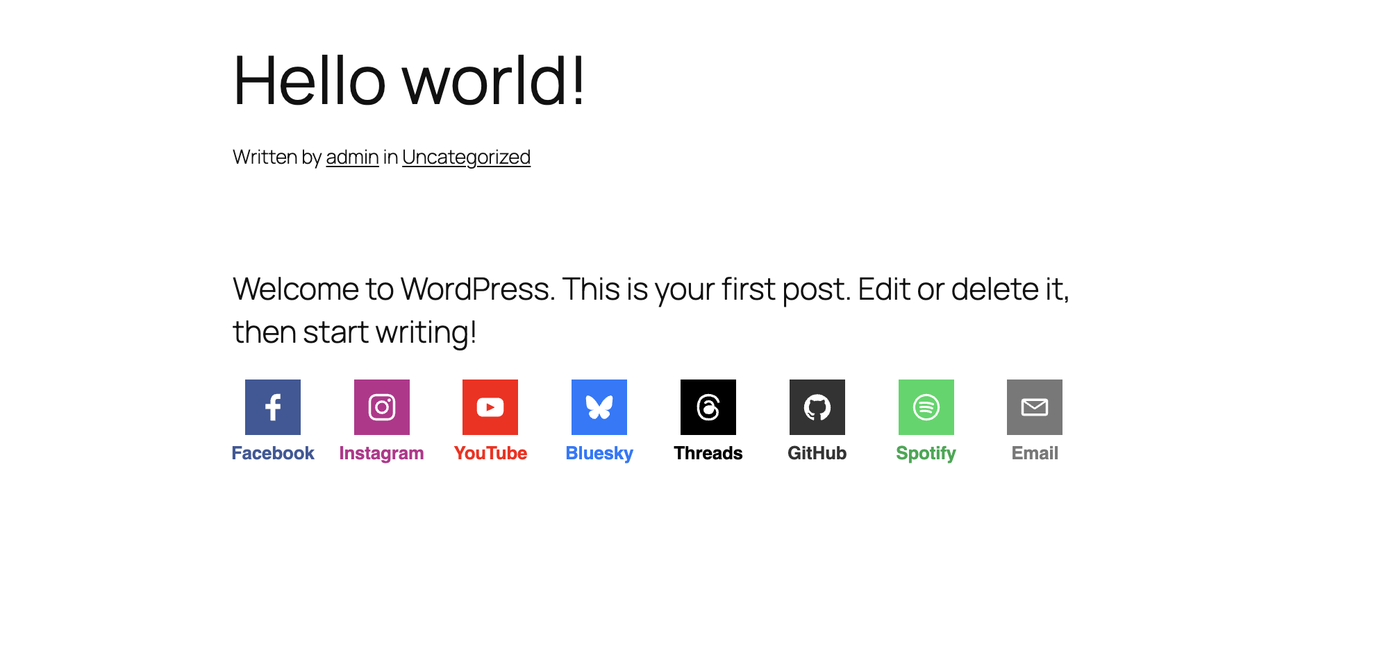
Instagram, YouTube, Bluesky, Threads, Mastodon, GitHub and more — the same set offered by ShareThis Follow Buttons.
Eleven button themes
Pick the shape and finish that suits your site. Leave the colour fields empty and each network keeps its own brand colour.
Your colours, if you want them
Button, button hover, icon and icon hover are all yours to set. The preview on the settings screen updates as you type.
Scalable SVG icons
Sharp on high-resolution screens, and they resize and recolour without you uploading a thing.
Put them where you like
Automatic on posts and pages, or place them yourself with the Follow Buttons widget or the [sfb] shortcode.
Caches cleanly
The buttons are ordinary HTML with no per-visitor content, so they sit happily behind a caching plugin.
Impostazioni
Everything on one screen
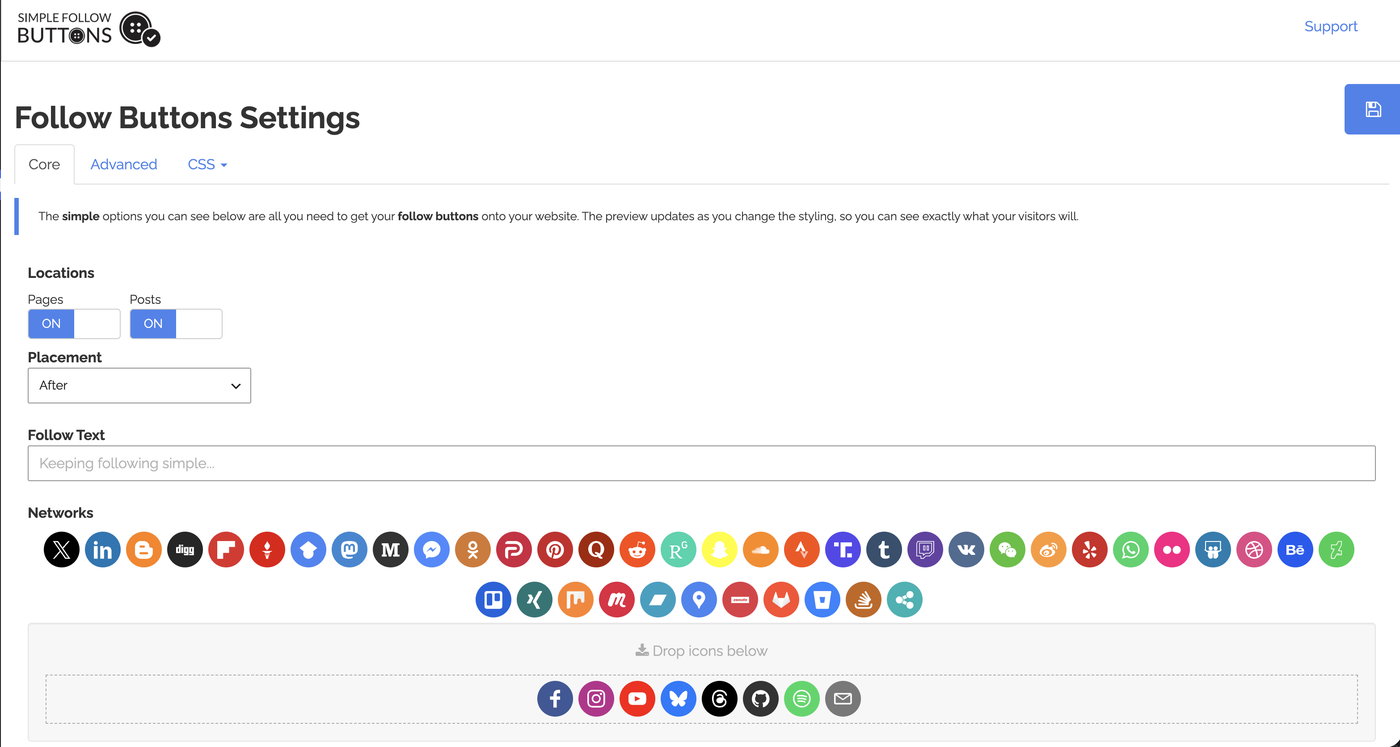
Locations, placement, networks and styling all live on a single settings page, with a live preview so you can see the result before you save.
- Show on posts, pages, or both
- Place buttons before or after your content
- Drag networks into the order you want
- Live preview as you change the styling
- Add your own CSS when you need to
Domande Frequenti
Questions about Simple Follow Buttons
In your dashboard under Follow Buttons. It is a top-level menu item, not under Settings.
A network is only rendered once you give it something to link to. Open Set Follow URLs and fill in your username or page for that network. Networks with an empty field are skipped rather than linking to an empty profile.
Just the part that comes after the address shown beside the field — enter sharethis for Facebook and the button links to https://www.facebook.com/sharethis. A few networks have no fixed address, so paste the complete profile URL instead: Mastodon, ResearchGate, WeChat, Bandcamp and Google Maps. The Email button takes an email address.
Yes, three ways: the Follow Buttons widget for sidebars and other widget areas, the [sfb] shortcode anywhere shortcodes are allowed, or turn off Pages and Posts under Locations and use only the shortcode or widget.
Add the [sfb_hide] shortcode anywhere in that post's content. The buttons are left off that post, and every other post is unaffected.
Only after you accept the ShareThis terms on the settings screen. Until you do, no ShareThis script is loaded and no request is made. Once accepted, a ShareThis property is created for your site and the ShareThis platform script is loaded on your pages. The follow button icons themselves are served from your own site, not from a third party.
Yes. The buttons are rendered as ordinary HTML with no per-visitor content, so they cache safely.
Grow your following from every post
Free on WordPress.org. Eleven themes, fifty-one networks, no account required to install.
